How to connect Tradovate to NinjaTrader for multiple prop accounts
Connect Tradovate prop accounts to NinjaTrader 8 step by step, run 10 or more accounts in one session, add Rithmic accounts, and fix common connection errors.
From Copilink, which makes trade copiers for running several futures prop firm accounts from one leader. See how it works →
To connect a Tradovate prop account to NinjaTrader 8, go to Connections → Configure, add a new connection, choose the NinjaTrader connection type (not the older Tradovate entry), and sign in with the Tradovate credentials your firm gave you. Repeat for every account. Each Tradovate account connects on its own, so your tenth account is set up exactly like your first.
How to connect Tradovate to NinjaTrader, step by step
- Update NinjaTrader 8 to the latest 8.1 release.
- Open Connections → Configure and click Add.
- Choose the NinjaTrader connection type. Current NinjaTrader versions connect Tradovate-based accounts through it; an older "Tradovate" entry, if you see one, is the legacy adapter.
- Enter the Tradovate username and password from your prop firm, not your firm website login.
- Name the connection so you can tell accounts apart: "Apex 50K Eval 1", "Tradeify Funded A".
- Click OK and connect. Every account under that login appears in the Control Center.
- Repeat for each additional login.
If an account does not appear, check it is active in the Tradovate web portal. Inactive and pending accounts are not returned to NinjaTrader.
Running 10 or more prop accounts in NinjaTrader
There is no practical connection limit for Tradovate accounts in NinjaTrader. The limit is your machine: every connection and open chart uses memory.
- Rename accounts in the Control Center so you never trade the wrong one.
- Keep a simple map of account number, firm, plan and stage.
- Watch memory. Connections dropping as you add accounts usually means the machine is short on RAM, not a connection fault. Close unused charts or add memory. See the hardware guide for 10+ accounts.
- Restart before the session on a machine that runs all day, to clear accumulated memory use.
- Set connections to auto-connect at startup if NinjaTrader runs on a VPS.
Running Tradovate and Rithmic accounts together
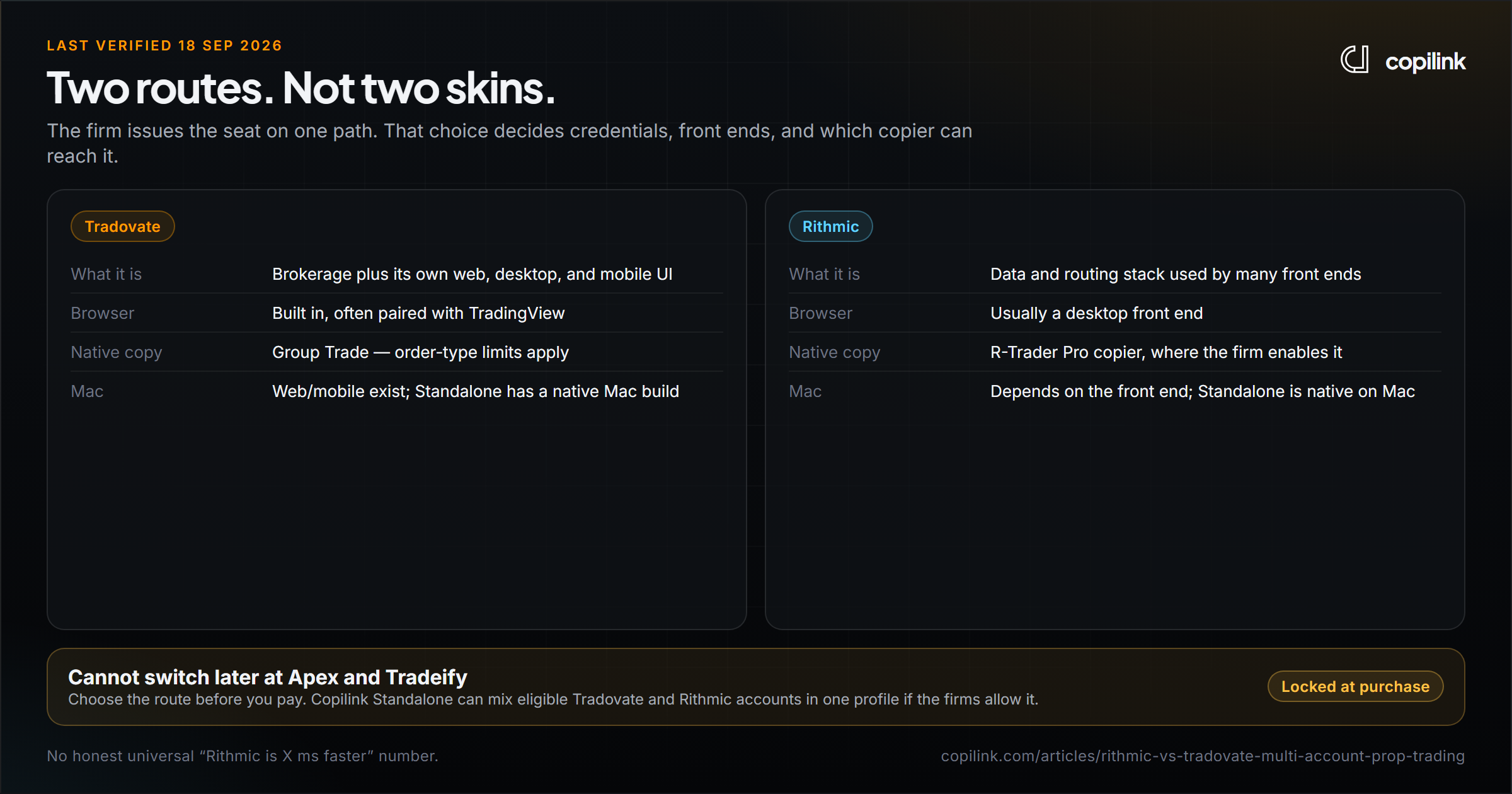
NinjaTrader can hold several Tradovate connections at once, but only one Rithmic connection. To add several Rithmic accounts alongside your Tradovate ones, run them through R|Trader Pro in plug-in mode. Not sure which route suits you? See Rithmic vs Tradovate.
Common connection problems and fixes
| Problem | Likely cause | Fix |
|---|---|---|
| "Session already active" or conflicts with several accounts | Legacy Tradovate connection type | Re-add the accounts with the NinjaTrader connection type |
| Authentication fails | Wrong credentials, or the computer clock is off | Use the firm-issued Tradovate login; make sure Windows time sync is on |
| Connected, but prices are stale | The data subscription dropped | Disconnect and reconnect that account |
| Connections drop after a few hours | Idle network timeouts or low memory | Check the network settings on the VPS; add RAM |
| Account missing after login | Account inactive or pending at the firm | Check it in the Tradovate web portal |
Copying trades across your connected accounts
Once the accounts are connected, Copilink for NinjaTrader 8 copies from one leader to the other accounts in the same NinjaTrader session, with per-follower size and risk limits. Setup steps are in the NinjaTrader setup guide.
Would you rather skip NinjaTrader? Copilink Standalone connects to Tradovate directly on Windows or Mac and can mix Tradovate and Rithmic accounts in one profile. See the Tradovate trade copier.
FAQ
Are Tradovate and NinjaTrader the same?
They are run by the same company but are different platforms. Tradovate is a broker with its own web and desktop platform; NinjaTrader is a desktop platform that can connect to Tradovate accounts.
How do I connect my Apex or Tradeify account to NinjaTrader?
If your account was issued on Tradovate, add it in NinjaTrader with the NinjaTrader connection type and the Tradovate login from your firm. Rithmic accounts use a Rithmic connection instead.
How many Tradovate accounts can I connect in NinjaTrader?
There is no fixed limit on Tradovate connections. Your computer's memory and CPU set the practical limit, so large setups often run on a VPS.
Can I connect Tradovate and Rithmic accounts in the same NinjaTrader?
Yes. Add the Tradovate accounts directly and bring in Rithmic accounts through a single Rithmic connection or R|Trader Pro plug-in mode.
Continue this topic
See Tradovate trade copier options →Trade without NinjaTrader
Copilink Standalone is a futures trade copier for Tradovate and Rithmic on Windows and macOS. The trial lasts 14 days and does not require a card.
Already use NinjaTrader 8?
The Copilink NinjaTrader 8 trade copier runs inside NinjaTrader 8 on Windows and includes a separate 7-day trial.