A trade copier built to run on Mac
Connect Tradovate and Rithmic accounts from a native macOS app. No NinjaTrader installation, Windows virtual machine or Windows VPS is required.
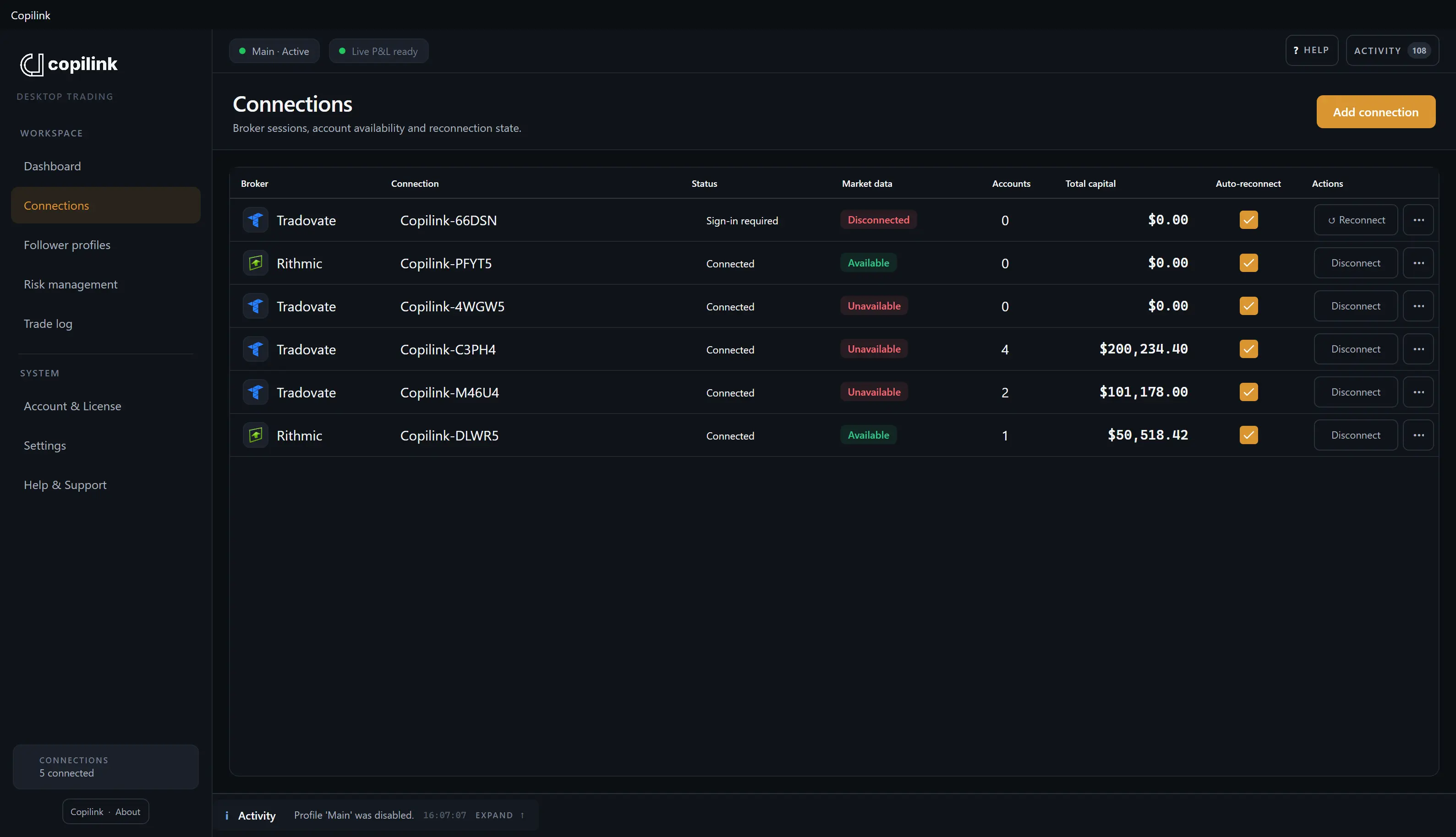
What the Mac build supports
Mac hardware
Separate production packages are built for Intel x64 and Apple silicon arm64 Macs.
Broker connections
Direct Tradovate and Rithmic connections. A firm still decides which feed and platform your account receives.
Secure storage
Desktop sessions and broker credentials use the macOS Keychain and remain tied to this device.
Updates
Installed production packages can receive the matching macOS update channel for their architecture.
NinjaTrader on Mac or a native copier?
NinjaTrader Desktop needs Windows, so on a Mac it runs in a virtual machine or on a remote PC. Copilink Standalone copies between Tradovate and Rithmic accounts natively, with no Windows at all.
| Route | What runs on your Mac | When it fits |
|---|---|---|
| Copilink Standalone | A native Intel or Apple-silicon desktop app with direct Tradovate and Rithmic connections. | You want a Mac trade copier without NinjaTrader Desktop. |
| NinjaTrader Desktop | Windows inside a virtual machine such as Parallels, or a remote Windows PC or VPS. Desktop does not install natively on macOS. | You need NT8 desktop add-ons and accept a Windows environment. |
| NinjaTrader Web | A browser platform available on Mac; it is separate from NinjaTrader Desktop. | You want NinjaTrader brokerage web trading rather than an NT8 desktop add-on. |
Set it up, then prove it with one micro contract
A clean test matters more than a quick install. Begin flat, keep the broker platform open for verification and watch every follower result before you trade full size.
- 01
Download the installer for your Mac
Choose the Intel or Apple-silicon package that matches this computer. Copilink ships as a native macOS application; there is no Windows virtual machine in the middle.
- 02
Sign in and connect your accounts
Tradovate opens browser authorization. Rithmic uses the username, system and location supplied by your prop firm. Credentials stay in macOS Keychain on this device.
- 03
Build one follower profile
Choose the leader, add only accounts you are allowed to copy, and set a whole-contract size or ratio for each follower.
- 04
Keep the Mac awake for the session
A desktop copier cannot send or monitor requests while the computer sleeps, loses power or loses its internet connection. Check the setup with one micro contract trade before you trade full size.
Sleep and network interruptions
Disable automatic sleep during a trading session and use a stable wired or strong Wi-Fi connection. After wake, a network change or a broker reconnect, confirm every position and working order at the broker before the leader trades again.
What does not change on Mac
Orders are still accepted, rejected and filled separately for each account. Copilink can send a flatten or cancellation request; it cannot guarantee the broker accepts or fills it. The broker remains the authority for live positions and orders.