NinjaTrader vs Tradovate: same company, different apps
NinjaTrader vs Tradovate isn't a choice between companies: NinjaTrader owns Tradovate, and one prop firm Tradovate login works in both. The real choice is which app you trade in.
From Copilink, which makes trade copiers for running several futures prop firm accounts from one leader. See how it works →
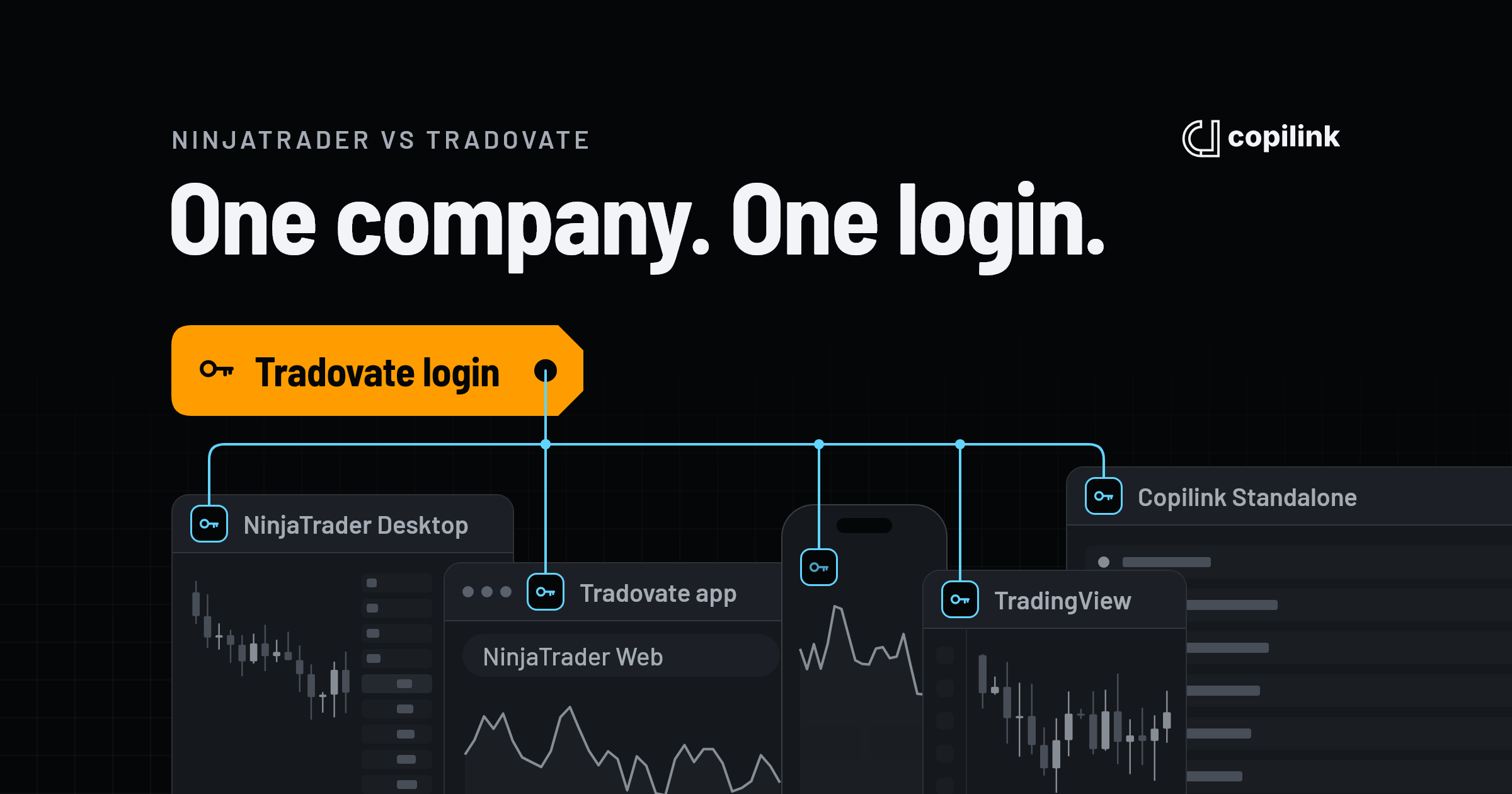
NinjaTrader bought Tradovate in 2022, and both brands now run on the same broker and the same logins. A prop firm's Tradovate login works in NinjaTrader Desktop, in the Tradovate app (which NinjaTrader also offers as NinjaTrader Web), and in TradingView. Use NinjaTrader Desktop if you rely on strategies, ATM templates or NinjaScript. If you only place trades from charts, the Tradovate app or TradingView is enough, and both work on a Mac.
Copilink Standalone signs in to those same Tradovate logins directly on Windows or Mac and copies trades across them without NinjaTrader, while Copilink for NinjaTrader 8 copies between accounts connected inside NinjaTrader Desktop.
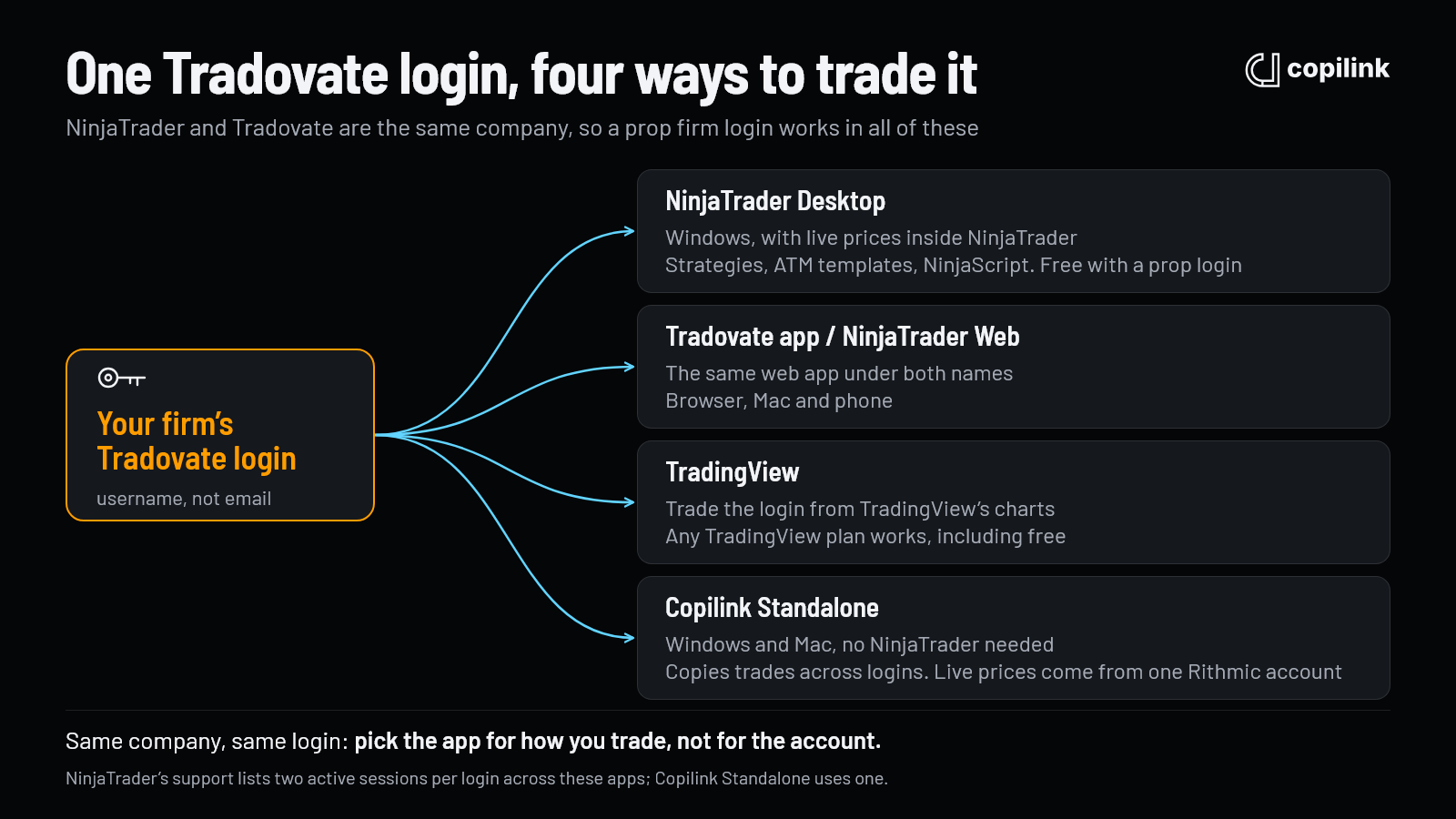
NinjaTrader vs Tradovate at a glance
| NinjaTrader Desktop | Tradovate app (NinjaTrader Web) | TradingView on a Tradovate login | |
|---|---|---|---|
| Runs on | Windows | Browser, Mac, phone | Browser, desktop app, phone |
| Best for | Strategies, ATM templates, NinjaScript | Trading from anywhere without installing anything | Trading from TradingView's charts |
| Cost with a prop login | Free | Free | Any TradingView plan, including free |
Are NinjaTrader and Tradovate the same company?
Yes. NinjaTrader Group bought Tradovate in January 2022, and Kraken completed its purchase of NinjaTrader in May 2025. Accounts under both names are held at the same broker, NinjaTrader Clearing LLC.
The apps have merged too. Tradovate's own support says NinjaTrader Web is the same web app as Tradovate. In October 2025 the company launched NinjaTrader Prop and Tradovate Prop as its brands for prop firm traders.
So a "Tradovate account" from your prop firm is a login on that shared system. Whichever name your firm uses, the Tradovate login it gives you opens in each of these apps, and you can switch apps any day.
How many apps can use one Tradovate login at once?
NinjaTrader's support lists two active sessions per Tradovate login, counted across desktop, web, mobile and TradingView. Copilink Standalone uses one of them. Plan around two, and if a login gets refused, close the sessions you don't need. I've had more than two connections running together without a problem, but don't rely on it.
Which should you use for prop firm accounts?
NinjaTrader Desktop is the one to pick if you use strategies, ATM templates or other NinjaTrader features. Connecting a prop firm's Tradovate login gives you live market data inside NinjaTrader, and the platform is free to use with a prop login. It runs on Windows only; on a Mac, see running NinjaTrader on a Mac.
The Tradovate app (NinjaTrader Web) suits manual trading from a browser, a Mac or a phone, with nothing to install.
TradingView suits traders who already chart there. Any TradingView plan works, including the free one.
If some of your accounts are on Rithmic, NinjaTrader allows only one Rithmic connection at a time, and in my experience Rithmic P&L updates slowly inside NinjaTrader. Tradovate logins don't have either problem. For more on the trade-offs, see Rithmic vs Tradovate.
Copying trades across Tradovate accounts
Copilink for NinjaTrader 8 copies from one leader to the follower accounts you choose among those connected in the same NinjaTrader session. It also copies a leader you trade from TradingView, as long as NinjaTrader is running with that login connected.
Copilink Standalone connects to Tradovate itself, so you can trade the leader in NinjaTrader, the Tradovate app or TradingView.
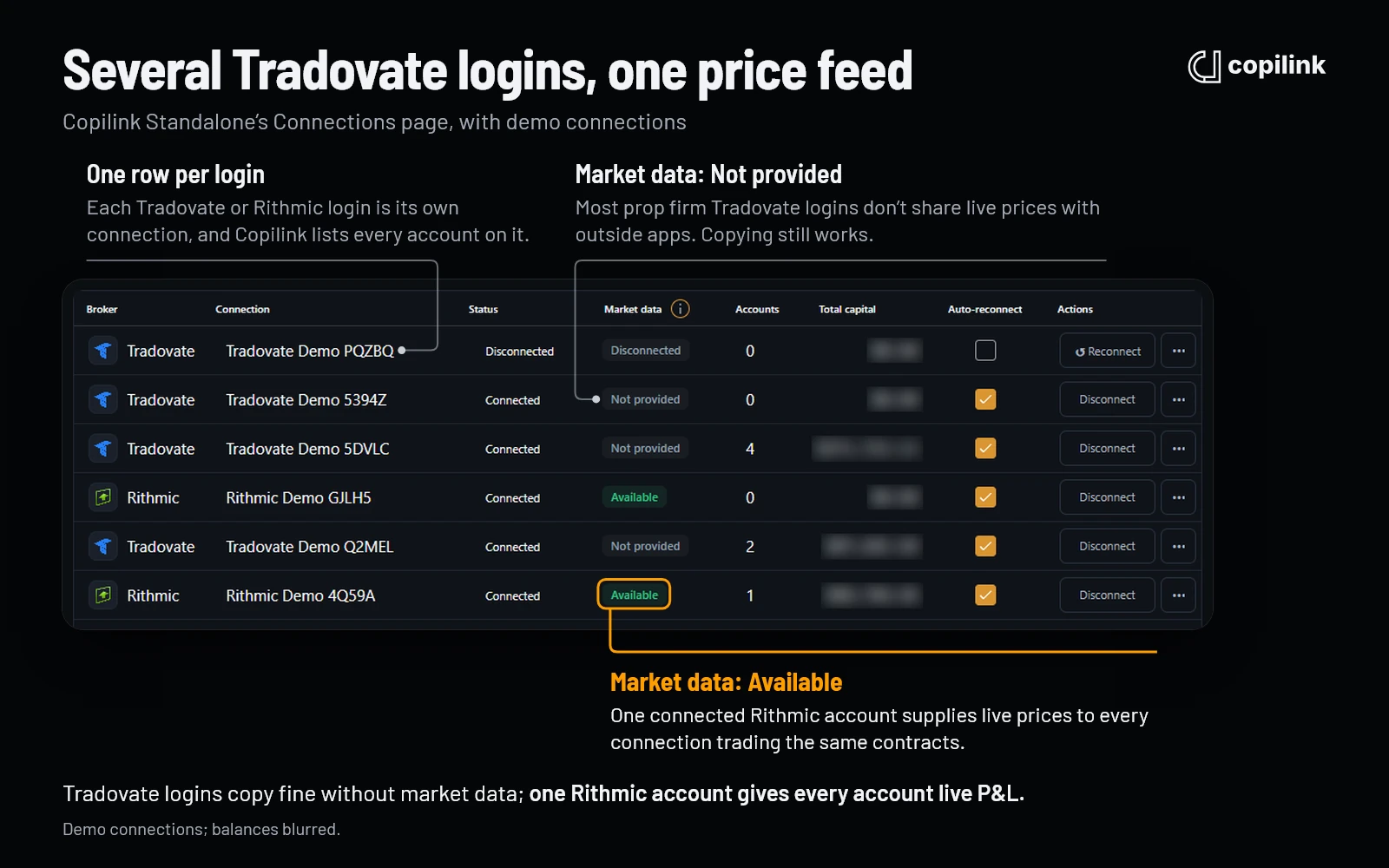
In Copilink Standalone, most prop firm Tradovate logins show "Not provided" in the Market data column, because those logins don't share live prices with outside apps the way they do inside NinjaTrader. Copying works the same either way; only open P&L updates more slowly. Connecting one Rithmic account supplies live prices to every connection trading the same contracts. See market data and live P&L.
How to connect Tradovate to NinjaTrader
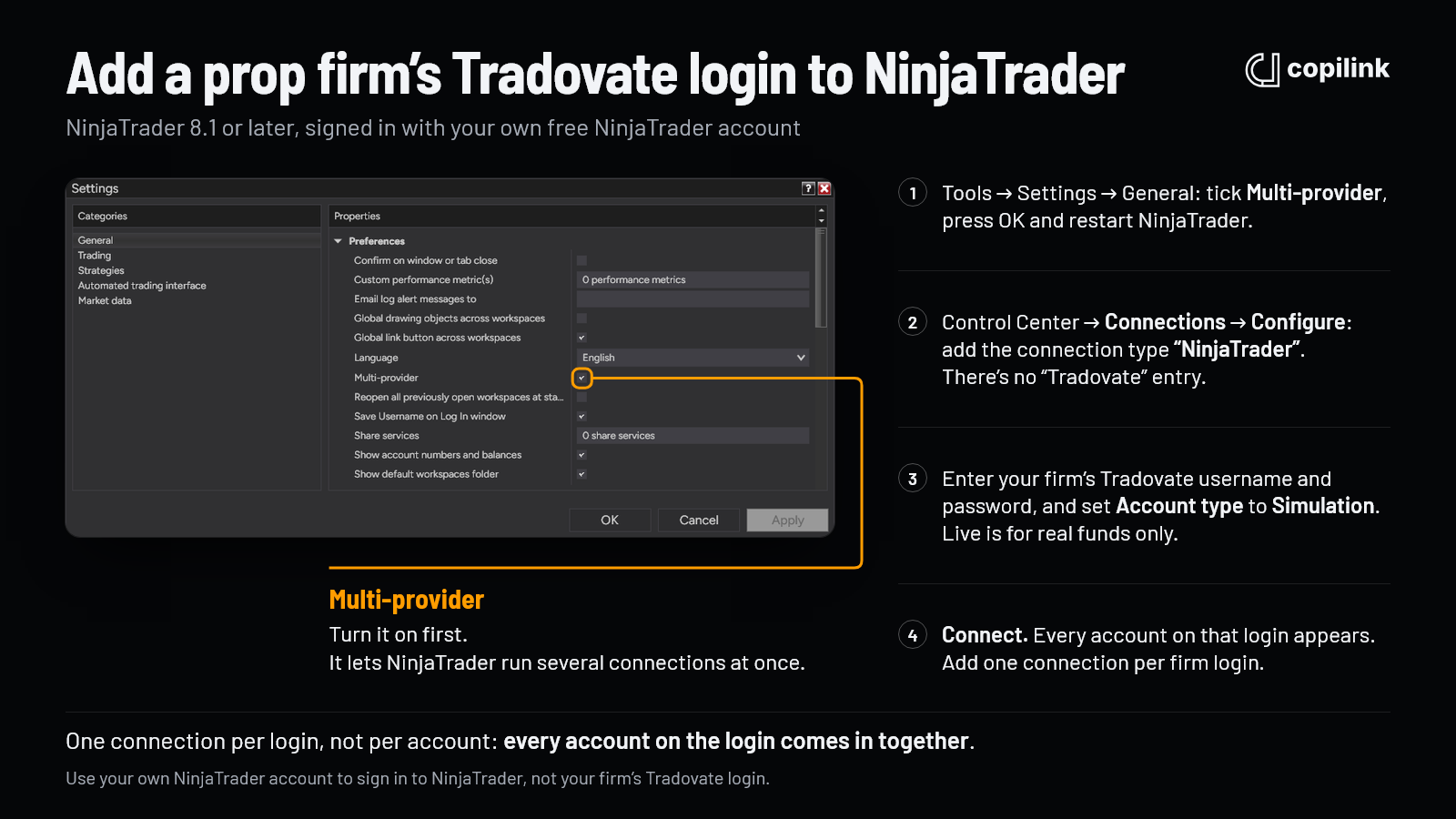
To connect a prop firm's Tradovate login to NinjaTrader 8, turn on Multi-provider, add a connection of type NinjaTrader (there's no "Tradovate" entry), enter the firm's Tradovate username and password with Account type set to Simulation, and connect.
- Use NinjaTrader 8.1 or later, because 8.0 versions can't connect to Tradovate logins. If you use Copilink's add-on, use 8.1.7.2 or later. Don't update on the day a new version comes out.
- Sign in to NinjaTrader with your own free NinjaTrader account, not your firm's Tradovate login. The firm's login goes in the connection, in step 5. Signing in with the firm's login is a mistake we've seen several times in support, and it breaks the Copilink add-on's licence, which is tied to your NinjaTrader account email.
- Turn on Multi-provider. Go to Tools → Settings → General, tick Multi-provider, press OK and restart NinjaTrader. It lets NinjaTrader run several connections at once.
- Add the connection. In the Control Center, open Connections → Configure and double-click NinjaTrader in the Available list. There's no "Tradovate" entry, and customers have written to support because they couldn't find one.
- Enter your firm's Tradovate username and password and set Account type to Simulation. Evaluation and funded prop accounts use Simulation; Live is for accounts trading real funds only. Give the connection the firm's name so you can tell them apart, and tick Connect on start up if you want it to connect by itself.
- Connect. Pick the connection from the Connections menu. When it turns green, every account on that login appears. Repeat steps 4 to 6 for each firm's login: it's one connection per login, not per account.
At Apex and other firms that offer both, check whether your login is Tradovate or Rithmic before you start. A Rithmic login needs a Rithmic connection instead; see connecting Rithmic accounts in NinjaTrader.
If the connection fails
- Login refused: use the username, not your email. Logins are case-sensitive, and if two-factor authentication is on, Tradovate asks you to approve a new device (NinjaTrader's login guide).
- Refused because of other sessions: close the Tradovate app, phone app or TradingView session you aren't using.
- Goes yellow, then drops with no accounts: check for a login restriction or extra verification on the Tradovate login. In one support case, turning the restriction off fixed it.
- No Configure in the Connections menu: turn on Multi-provider and restart NinjaTrader.
NinjaScript vs the Tradovate API
NinjaScript is NinjaTrader's C# framework for strategies, indicators and add-ons that run inside NinjaTrader Desktop. It works on any account connected in NinjaTrader, prop accounts included, as far as your firm's rules on automation allow.
The Tradovate API is a REST and WebSocket interface that NinjaTrader documents under its own name too. Prop firm and evaluation accounts can't get API access. It needs a live funded brokerage account with at least $1,000 and a $25 a month add-on, and it doesn't include real-time market data.
Copilink is an official NinjaTrader vendor. Copilink Standalone signs in with your Tradovate login, or you approve access in your own browser, so you never need an API key. Tradovate limits how many requests an app can send, and Standalone keeps to a budget of 60 requests a minute and 5,000 an hour. I've never hit Tradovate's limits in my own trading. See connecting Tradovate to Copilink Standalone.
NinjaTrader and Tradovate fees
- With a prop firm login: NinjaTrader Desktop and the Tradovate app are free to use, and TradingView works on any plan, including the free one.
- With your own brokerage account: NinjaTrader and Tradovate list the same plans: free, $99 a month or $1,499 lifetime, with the same commissions. Check the current NinjaTrader pricing before you open an account.
FAQ
Does NinjaTrader own Tradovate?
Yes. NinjaTrader Group bought Tradovate in January 2022. Kraken has owned NinjaTrader since May 2025.
Is NinjaTrader the same as Tradovate?
NinjaTrader and Tradovate are the same company and the same broker, with one shared login. NinjaTrader Desktop is a separate Windows platform, while the Tradovate app is also offered as NinjaTrader Web.
Can I use my Tradovate prop account in NinjaTrader?
Yes. Turn on Multi-provider, add a connection of type NinjaTrader with your firm's Tradovate login, and set the account type to Simulation.
Do I need a separate NinjaTrader connection for each Tradovate account?
No. Add one connection per login, and it brings in every account on that login. Rithmic is different: NinjaTrader allows only one Rithmic connection at a time.
Can I use the Tradovate API with a prop firm account?
No. Your own API access needs a live funded brokerage account. Apps such as Copilink Standalone still work with prop logins, because you sign in to them with your Tradovate login, not an API key.
Do I need NinjaTrader to copy trades between Tradovate accounts?
No. Copilink Standalone copies trades between Tradovate accounts and connects to Tradovate directly on Windows or Mac. You need NinjaTrader only for the Copilink for NinjaTrader 8 add-on.
Continue this topic
See Tradovate trade copier options →Trade without NinjaTrader
Copilink Standalone is a futures trade copier for Tradovate and Rithmic on Windows and macOS. The trial lasts 14 days and does not require a card.
Already use NinjaTrader 8?
The Copilink NinjaTrader 8 trade copier runs inside NinjaTrader 8 on Windows and includes a separate 7-day trial.