
How to install Copilink in NinjaTrader 8
To install Copilink in NinjaTrader 8, import the add-on from your dashboard, open it from the Control Center, choose your leader and followers, then place one micro contract trade to check that it copies.
What you need before you start.
You need
4Windows PC or Windows VPSOn a Mac, use a Windows VPS.
NinjaTrader 8 desktop, 8.1.7.x or newerLicensing does not work on older versions.
A Copilink for NinjaTrader 8 licence or the trial
Every account in one NinjaTraderLeader and followers connected in the same NinjaTrader 8, on the same computer.
Licence
Install the add-on.
In NinjaTrader 8
Download Copilink.zip.
It is on your Dashboard.In the Control Center, open Tools → Import → NinjaScript Add-On...
The import dialog opens.Select Copilink.zip and press Import.
Select the zip itself; do not unzip it. NinjaTrader says when the import is done.Restart NinjaTrader.
Updating
Connect your accounts.
In the Control Center
Open Connections → Configure and add each broker or prop firm connection.
If Configure is missing, turn on Multi-provider under Tools → Settings → General and restart NinjaTrader.Connect every account you want to copy.
Copilink sees exactly the accounts NinjaTrader shows as connected.
Rithmic
Set up your first copy.
In the Copilink window
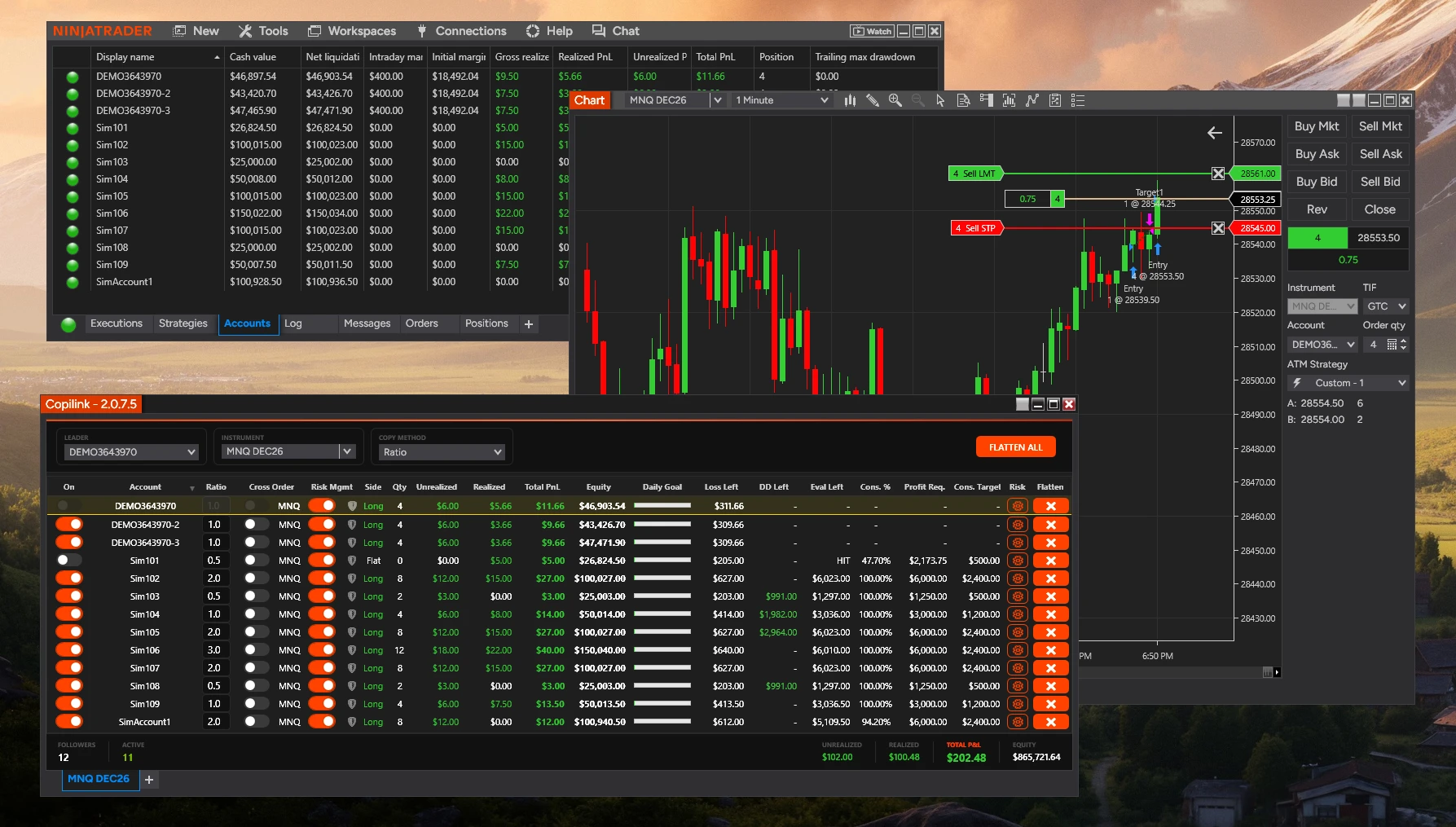
Open Copilink: Control Center → New → Copilink.
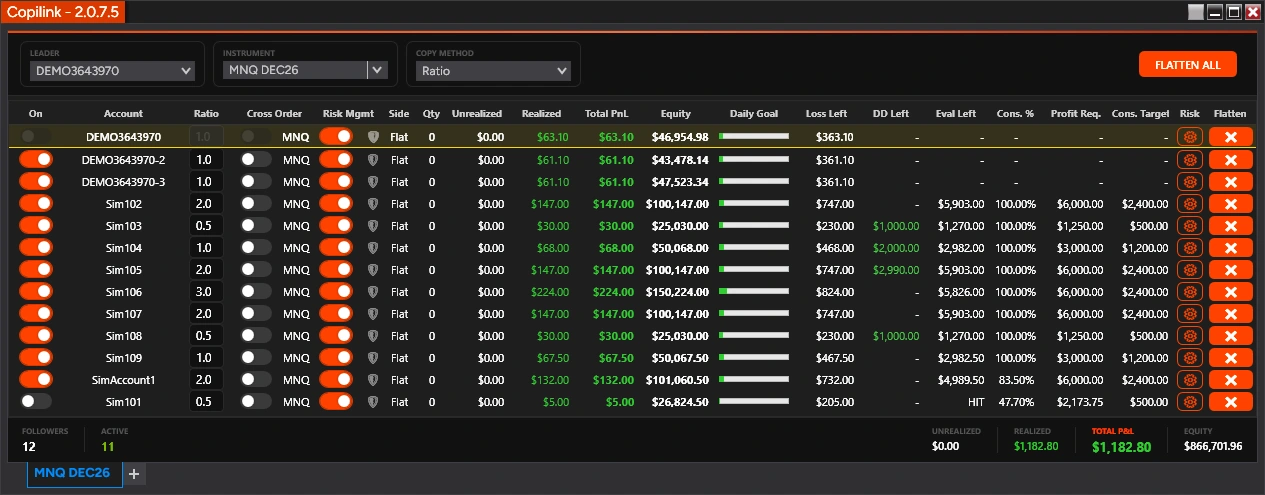
Copilink is near the bottom of the New menu. Its window opens with one tab, and each connected account is a row in the grid.Under LEADER, choose the account you trade from.
The leader is the top row of the grid, underlined in yellow. Its On switch is greyed out because it is the source.Under INSTRUMENT, choose the contract you will trade, with its expiry.
For example MNQ DEC26. The tab takes the contract's name. Each tab copies one instrument; add a tab with the + for another.Under COPY METHOD, choose Exact Quantity or Ratio.
Exact Quantity copies the leader's size. Ratio multiplies it by each follower's Ratio and rounds down to whole contracts.Switch On each follower that should copy. Leave the others off.
With Ratio, set each follower's Ratio: 1.0 is the leader's size.
Check it with one trade.
On the leader
Place one micro contract trade in the tab's instrument.
Each follower that is On shows the same Side within a moment, and Qty shows its size.Close the trade.
The followers close too and show Flat.
A follower did not copy? Check that its On switch is on and that the instrument and expiry match what you traded. Then right-click the Copilink window, choose Settings and press ACTIVITY LOG: the log opens under the grid and says what happened. More causes are in why trades are not copied.
Warning
Still stuck?
The user guide explains every control, and the risk management guide sets up account rules.
Not a customer yet? Try Copilink Risk free.7 days free · No card · Copilink Risk: copier and risk rules
Start the 7-day NT8 trial