How to connect Tradovate to TradingView with a prop firm account
How to connect Tradovate to TradingView on a prop account: click Trade, pick Tradovate or NinjaTrader, choose Demo and sign in with your firm's username. Your firm includes Level I CME data.
From Copilink, which makes trade copiers for running several futures prop firm accounts from one leader. See how it works →
Short answer
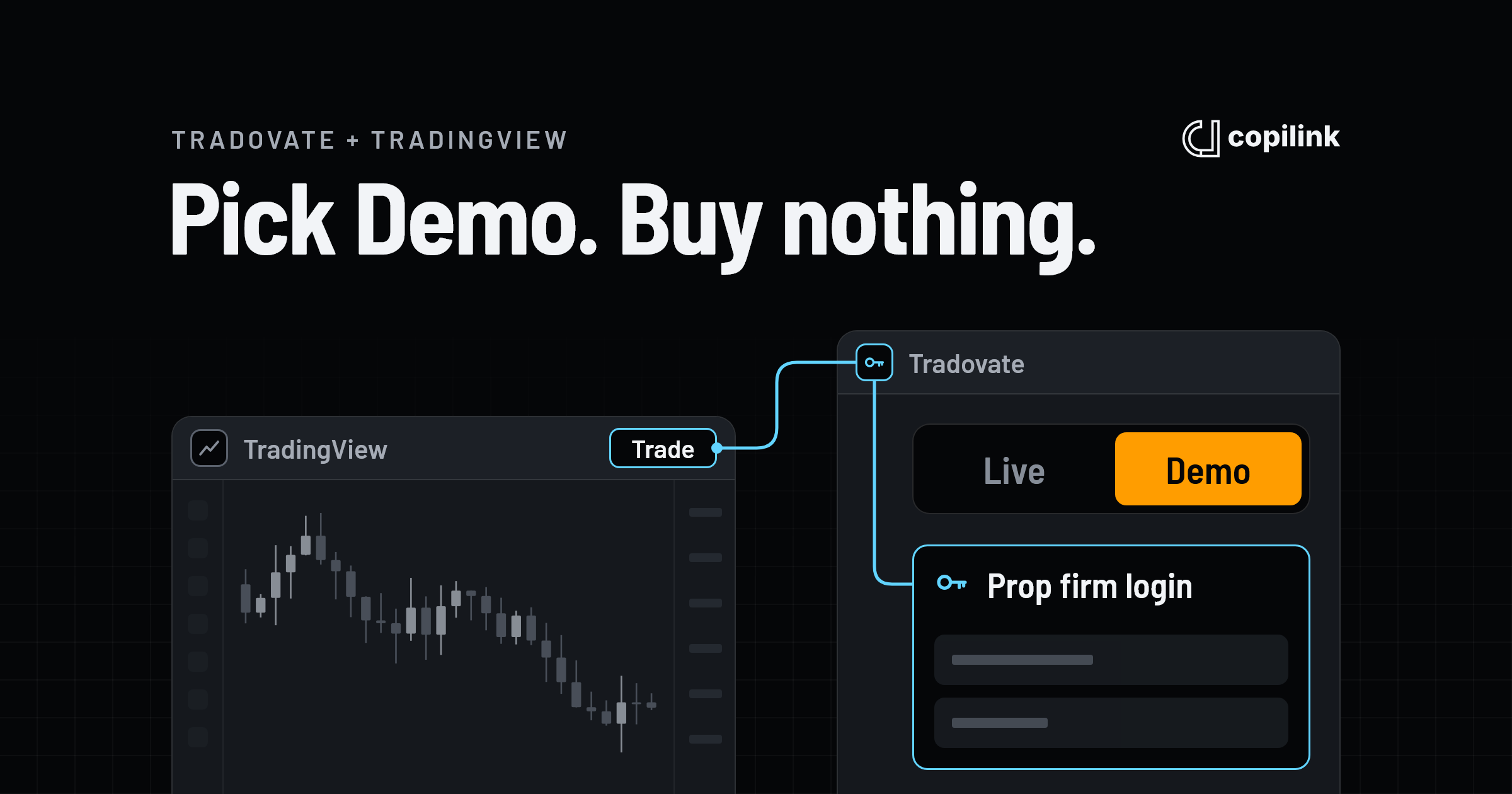
To connect Tradovate to TradingView with a prop account, click Trade on the chart, pick Tradovate or NinjaTrader, choose Demo and sign in with the username and password your prop firm gave you. Your firm controls TradingView access and includes Level I CME data, so don't buy the $9.99 add-on or Level I data yourself. Log in once at trader.tradovate.com first, because the Professional or Non-professional status you pick there is locked.
You connect a Tradovate prop account from TradingView's own trading panel: click Trade, pick Tradovate or NinjaTrader, choose Demo and sign in with the username your firm sent you. Before that, log in once at trader.tradovate.com to sign the market data agreement, because the subscriber status you pick there is locked. And don't buy the $9.99 TradingView add-on or Level I CME data: your firm controls TradingView access, and Level I is included in what you pay it[1][2].
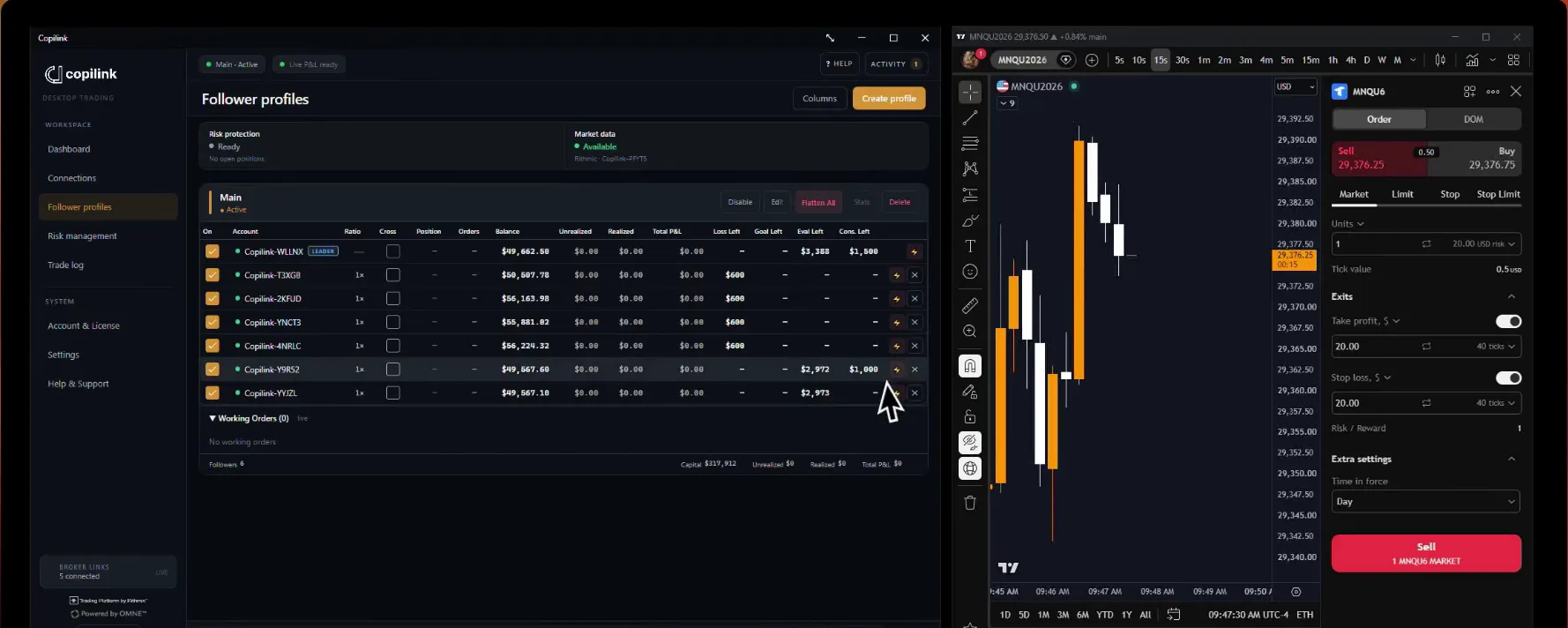
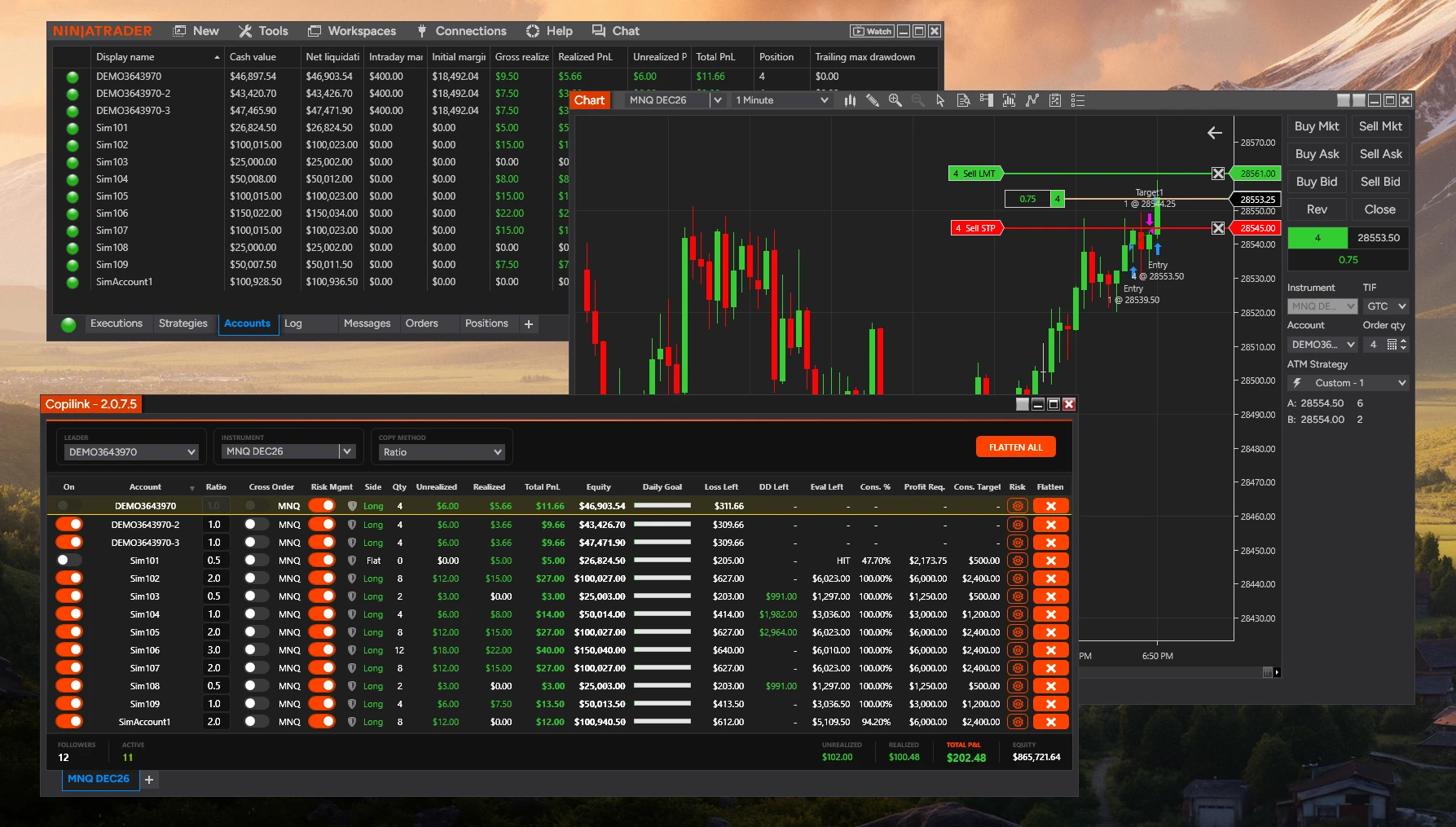
If you trade several prop accounts, Copilink Standalone works as a TradingView trade copier: it copies trades placed from TradingView on a Tradovate leader account to your other Tradovate and Rithmic accounts, with per-follower sizing and stop-loss sync, from a Windows or macOS desktop app.
Before you connect: the first login sets your data fee
Do this once for each prop login, the username your firm gives you, before you open TradingView. Log in at trader.tradovate.com in a desktop or laptop browser, not the mobile app. That first login opens Tradovate's Market Data Subscriber Certification[3]:
- Professional or Non-professional. Once you pick, the status is locked and only your firm can change it. If you're not sure which applies to you, ask your firm before you pick. Tradeify, for example, tells its traders to sign the non-professional agreement or "potentially incur a $300 per month data fee"[4].
- The Uniform Subscriber Agreement. Type your name without accented or special characters.
- Select a Trading Mode. Choose Simulation. Live starts an application for a live brokerage account.
If you've already logged in at trader.tradovate.com with this username, you've done this step. Until it's done and your firm has enabled access, the account won't trade from TradingView[3].
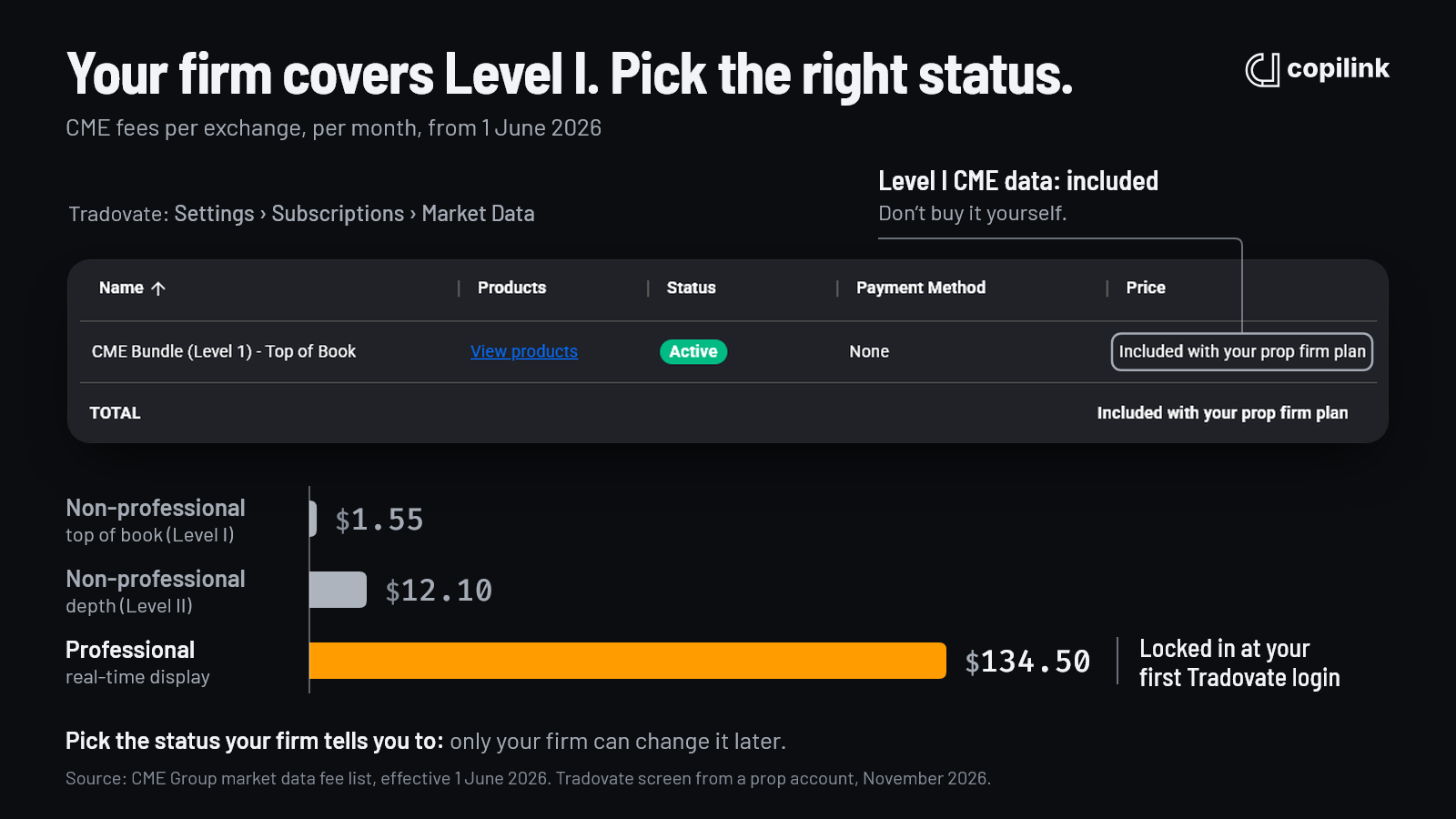
The status matters because of what CME charges for the data itself[5]:
| CME real-time data, per exchange, per month | Fee from 1 June 2026 |
|---|---|
| Non-professional, top of book (Level I) | $1.55 |
| Non-professional, depth (Level II) | $12.10 |
| Professional, real-time display | $134.50 |
On a prop account your firm covers Level I. Under Settings, Subscriptions, Market Data, Tradovate shows the CME bundle as active and "Included with your prop firm plan". A Professional status costs far more, which is why firms warn you about it.
How to connect Tradovate to TradingView, step by step
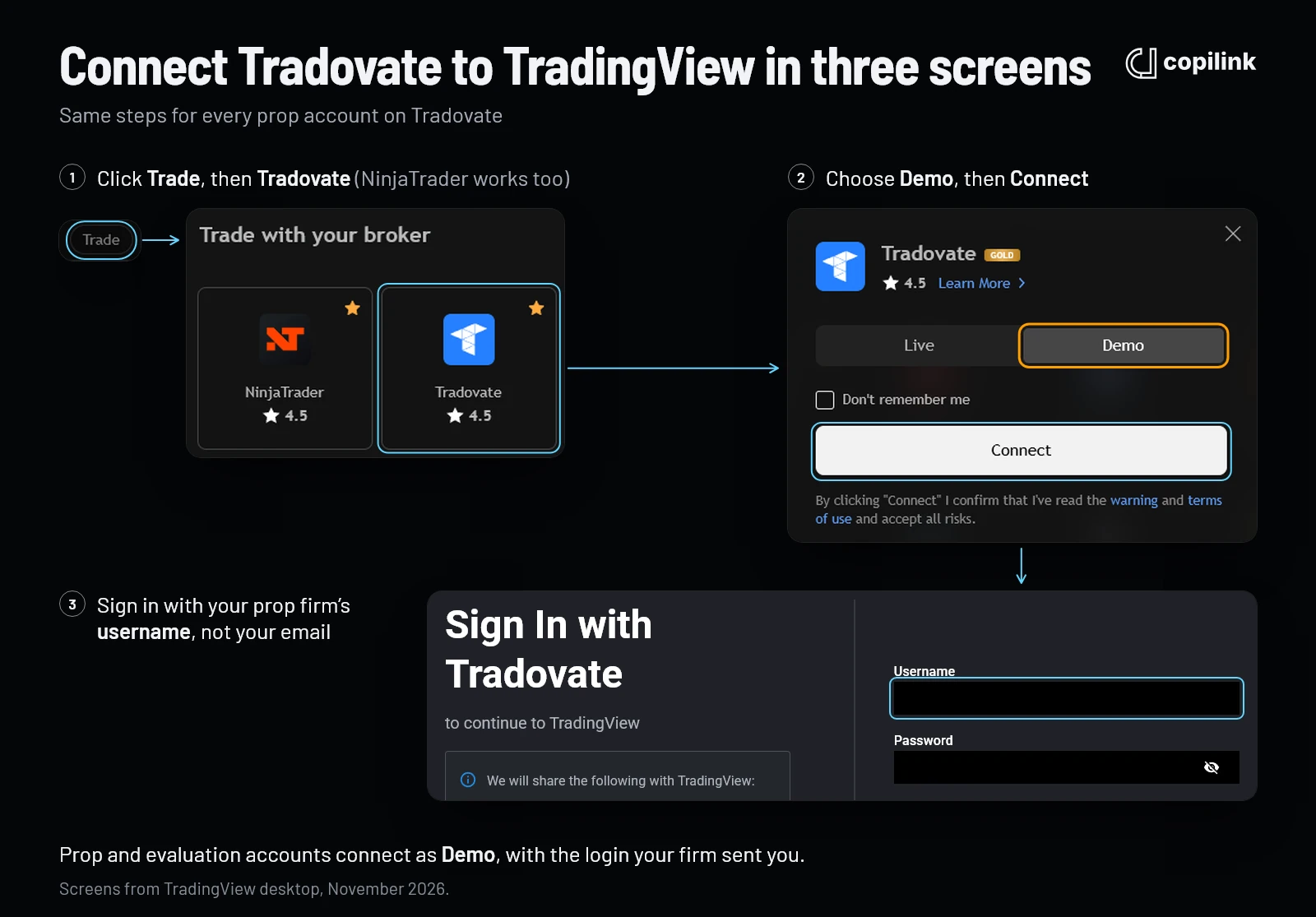
- Open a futures chart in TradingView and click Trade at the top right. Under "Trade with your broker", you'll see NinjaTrader and Tradovate side by side.
- Click Tradovate, choose Demo and click Connect. Prop and evaluation accounts use Demo[1]. If TradingView then says "Something Went Wrong, Contact Your Broker", Demo is the first thing Tradovate tells prop traders to check[6].
- A Tradovate window opens: "Sign In with Tradovate to continue to TradingView". Enter the prop username and password from your firm. If you've linked Google or Apple to that login, those buttons work too; if they fail, type the username and password instead[6].
- Back on the chart, the trading panel shows the accounts on that login. Pick one and place one micro contract trade to see the order arrive.
Tradovate's data reaches your TradingView charts on its own, so you don't need a TradingView data plan. If your firm has just enabled a subscription, allow up to five minutes and restart TradingView[1]. Any TradingView plan connects, including the free one, but Tradeify notes the free plan only updates about every five seconds[7].
Tradovate or NinjaTrader in the broker list?
Both sign in to the same Tradovate Prop login. The difference is how:
- Tradovate sends you to Tradovate's own sign-in page, the window in step 3, then returns you to TradingView, signed in.
- NinjaTrader takes the username and password inside TradingView itself.
I connect through the NinjaTrader option because it's faster when my browser has the login saved. Tradovate's own pages don't agree on which to pick. Its support guide says Tradovate[1], and the Tradovate Prop guide says NinjaTrader[8]. Either one works.
Market data and the TradingView add-on: what a prop account pays for
Most guides you'll find tell you to buy the $9.99 TradingView add-on. On a prop account, Tradovate says not to[1]. Some firms, Tradeify for one, do ask you to switch on the free add-on in Tradovate under Application Settings, Add-On Tools[7].
| Item | On a prop account |
|---|---|
| TradingView access (the $9.99 add-on) | Don't buy it. The add-on only applies to brokerage accounts on Tradovate's old pricing. Your firm controls access, and many firms include it while you have an active account, though not all[1][3] |
| Level I CME data | Included. Tradovate: "Please do not purchase Top of Book CME Group data yourself"[2] |
| Level II (depth) | Optional, and you pay for it. Tradovate's market data page lists the CME Group bundle at $48 a month[2] |
| Market data bought on TradingView | Not needed, and it won't let you place orders through Tradovate[9] |
| TradingView plan | Any plan connects |
If you can't see the add-on's purchase option when you log in with prop credentials, that's expected[3]. Data is tied to the firm, too: a subscription enabled through one firm can't be used for accounts at another[3].
"Non-tradable symbol": what it means and how to fix it
TradingView shows "Non-tradable symbol" when Tradovate won't take an order for the symbol on your chart. The message names the broker option you connected through, so it ends in "via Tradovate" or "via NinjaTrader". The one below is on MNQZ2024, the December 2024 contract, long expired.
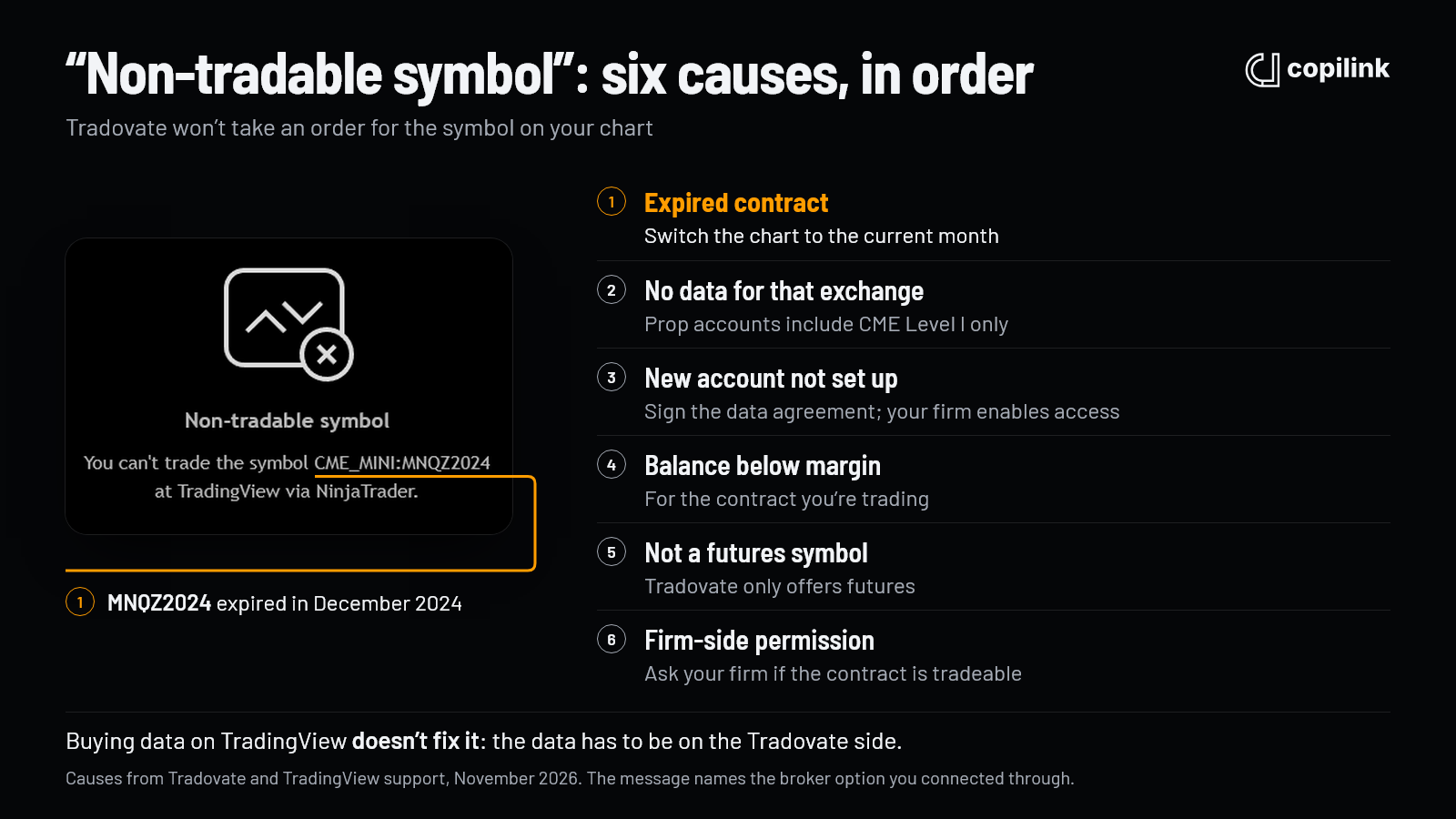
Work through the causes in this order:
- The contract has expired. Switch the chart to the current contract month[1].
- No market data for that exchange. Tradovate needs an active data subscription for the market you're trading. Prop accounts get CME Level I; another exchange, such as EUREX, needs its own subscription[1][2].
- The account isn't set up yet. On a new account, the data agreement may not be signed, or your firm may not have enabled data and TradingView yet. Do the first login above, then ask your firm[3].
- Your balance is below the margin for that contract[6].
- It isn't a futures symbol. Tradovate only offers futures, so a stock, crypto or CFD chart can't be traded through it[1].
- Your firm has to fix it. If none of the above fits, ask your firm whether that contract is tradeable on your account[1][6].
Buying data on TradingView doesn't fix it. The data has to be on the Tradovate side[9].
Other errors when you connect
| Error | What to do |
|---|---|
| "Error! Too Many Requests" | Too many login attempts, usually from a wrong password. Wait 60 minutes. Tradovate's own apps still work meanwhile[6] |
| "Something Went Wrong, Contact Your Broker" | Check you picked Demo, used the prop username rather than a Tradovate login you made yourself, and that your firm has enabled TradingView[6] |
| "TradingView has not been entitled to access your account" | Check the TradingView add-on is switched on in Tradovate under Application Settings, Add-On Tools. If it isn't there, ask your firm to enable it[7][10] |
| "No trading accounts available" | Check the Live or Demo choice, then ask your firm[10] |
| 2FA on a new computer | Approve the access email the broker sends you[10] |
| "Username or password is incorrect" | If a saved login fails, type them by hand and check they work at trader.tradovate.com[10] |
Chart the dated contract, not the 1! continuous chart
I always trade from the dated contract, the symbol with the month and year in it (MNQZ2026 is December 2026), never MNQ1!. Older data on a 1! chart looks distorted to me. A continuous chart moves on to the next contract when the front month expires[11], and TradingView doesn't back-adjust it unless you turn that on[12], so the price jumps at each roll. I don't scroll far back anyway, so the dated chart costs me nothing.
A dated chart also shows exactly which contract your order goes to. Copilink Standalone copies that order to each follower on the same contract, and with Cross on it swaps to the mini or micro pair but keeps the contract month. When the roll comes, I switch the chart to the next month.
What works differently on a Tradovate account in TradingView
Tradovate lists a few limits when you trade it through TradingView[1]:
- Brackets only attach to entry orders placed from the Order Panel. A buy or sell market order from the chart can't have a bracket.
- You can't add an OCO to a position that's already open.
- Group Trade, Tradovate's way of sending one order to several accounts, isn't available.
- Profit and loss estimates on the chart don't show.
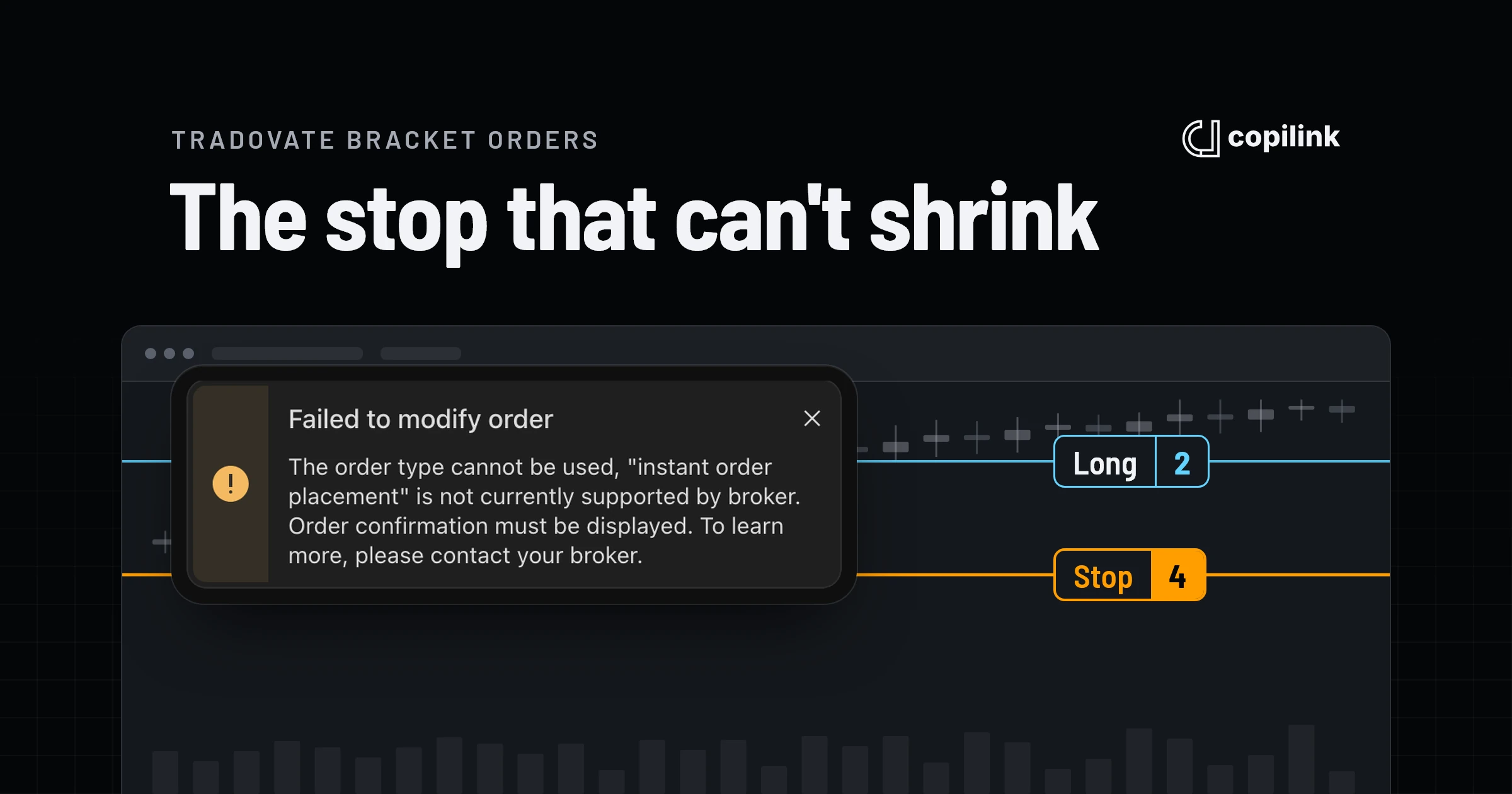
If you take partials with a bracket, you may also hit Tradovate refusing to resize its stop. I wrote up that error and the fix in TradingView "Failed to modify order" on Tradovate.
Trading several prop accounts from TradingView
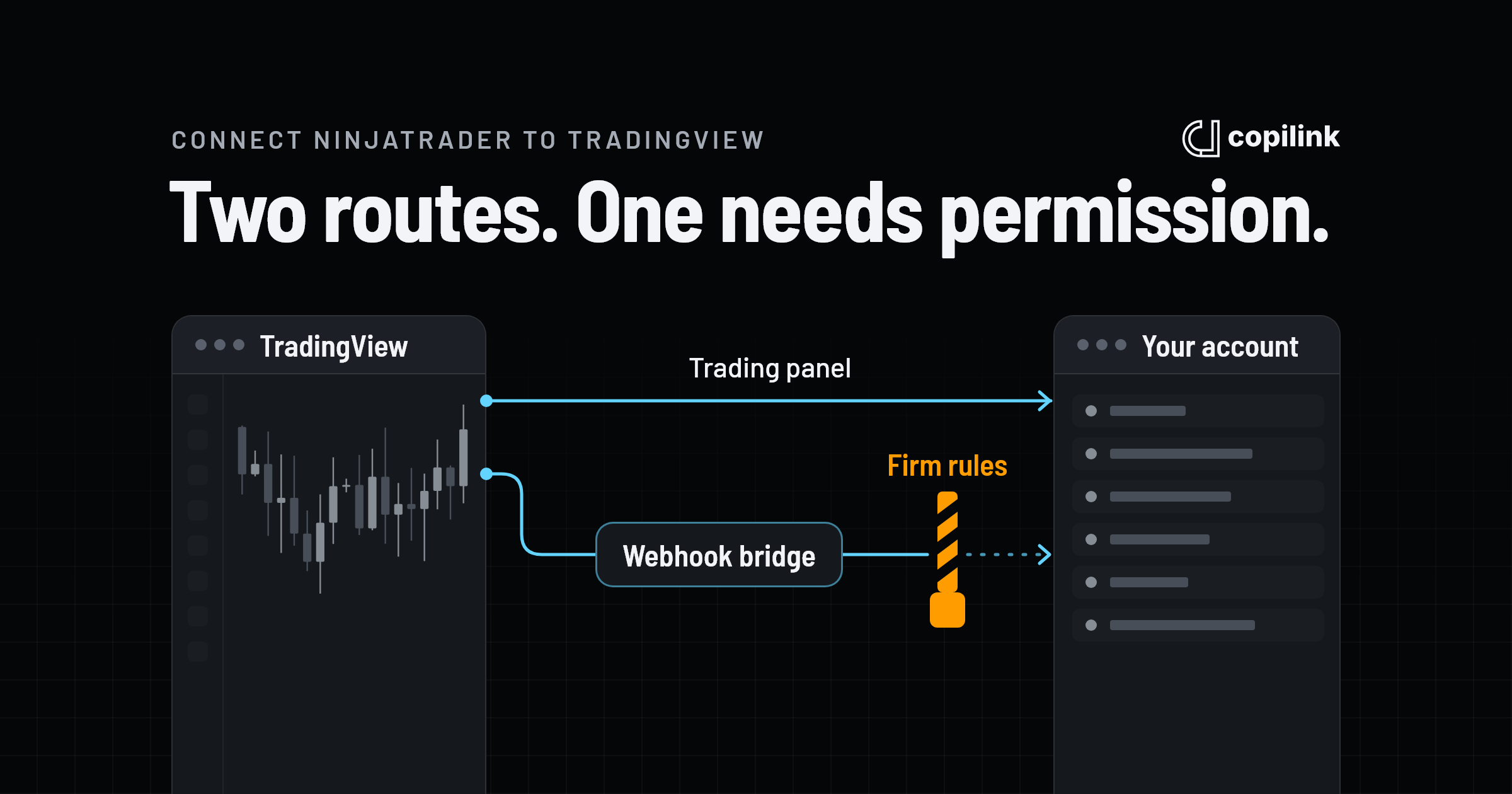
TradingView sends each order to the one account picked in the trading panel, and without Group Trade there's no built-in way to send it to the rest. So I keep TradingView on one side, trading a single Tradovate prop account, and Copilink Standalone beside it copying that account to the others. Copilink signs in to Tradovate on its own, through Tradovate's sign-in page, so it doesn't depend on TradingView's connection.
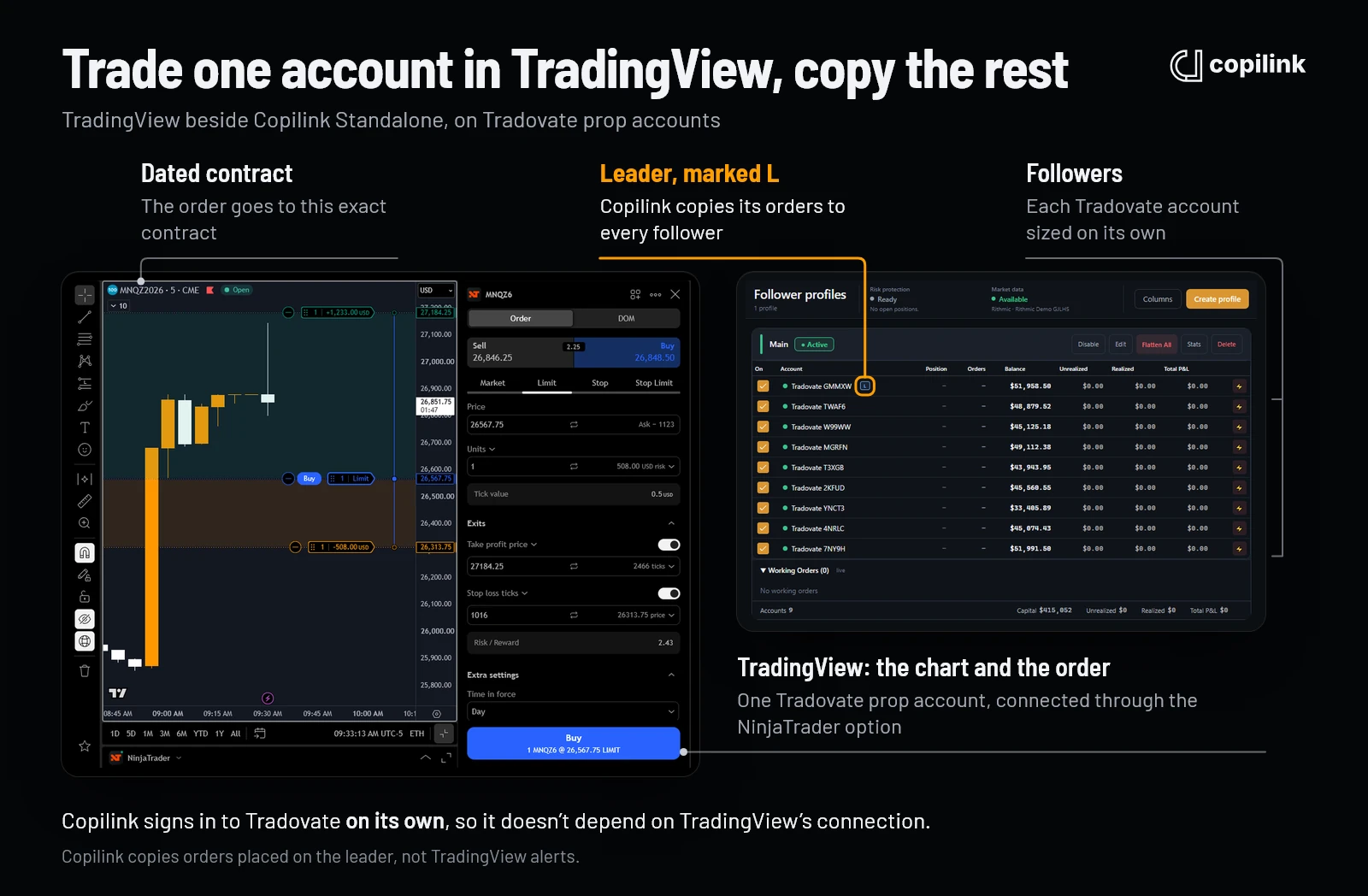
It still happens that I pick the wrong leader, in TradingView or in Copilink. Prop account numbers are long and look alike, and you don't always read them. It is what it is: you notice, fix it, and the next trade goes where it should. In Copilink the leader has a small blue L next to its name.
Copilink copies orders placed on the leader account, not TradingView alerts. If you want alerts to place trades for you, that's a different setup, covered in automating TradingView alerts with NinjaTrader.
FAQ
Do I need a paid TradingView plan?
No. Any TradingView plan connects to Tradovate. Tradeify notes that the free plan only updates about every five seconds.
Can I connect a Rithmic prop account to TradingView?
No. TradingView doesn't connect to Rithmic. A Rithmic account can still follow a Tradovate leader you trade from TradingView, through Copilink Standalone.
Why does the error say "via NinjaTrader" when my account is on Tradovate?
Because you connected through the NinjaTrader option in TradingView's broker list. It's the same login.
Can I use one firm's market data for another firm's accounts?
No. Data enabled through one firm can't be used for accounts at another, so each firm's login carries its own.
Sources
- Tradovate: TradingView Connection Guide
- Tradovate: Subscribing to Market Data
- Tradovate: Using Your Prop or Evaluation Account on Tradovate
- Tradeify: Tradovate platform overview
- CME Group: Market data fee list, effective 1 June 2026
- Tradovate: Common TradingView Errors
- Tradeify: TradingView via Tradovate add-on setup
- Tradovate Prop: Connect your prop account to TradingView
- TradingView: Why do I receive a non-tradable symbol message on Tradovate?
- TradingView: Issues and questions about Tradovate
- TradingView: What are 1! and 2! continuous futures contracts?
- TradingView: Improvements for CME Group Futures
Written by David
Copy one leader to all your prop firm accounts
Copilink Standalone copies one leader to Tradovate and Rithmic followers from Windows or macOS, sizes each account separately and can request a flatten when a follower ends up opposite the leader.
14 days, no card needed
Already use NinjaTrader 8?
The Copilink NinjaTrader 8 trade copier runs inside NinjaTrader 8 on Windows and includes a separate 7-day trial.